Wild Game ProGet Started

How It Works

Every Screen, in the Order You Use Them

These pictures are the demo shop. Open it and you can press every button yourself.

Try the Demo Shop

Pre Check-In, From the Hunter's Phone

Put the link on your website or a sign at the door. The hunter types who they are, picks the animal, ticks the cuts they want and gets a 4-digit code, by text and on the screen.

  • No account and no app for the hunter
  • It is not an order yet: nothing gets a number until your staff save it
  • One that nobody claims is removed after 14 days
  • You can close pre check-in any time under Settings
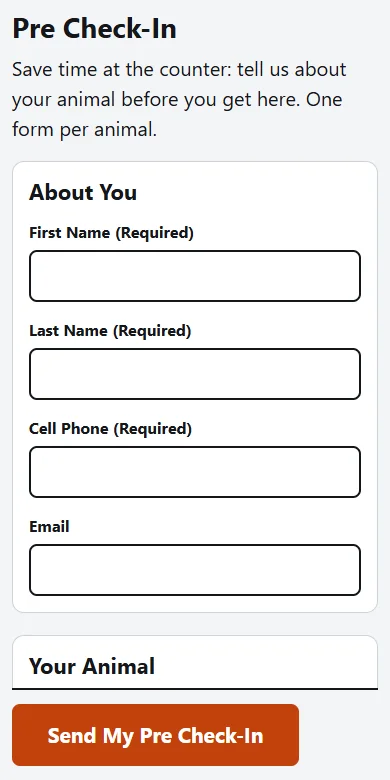
The customer's pre check-in form on a phone, with the animal and the cut lists.

The Counter

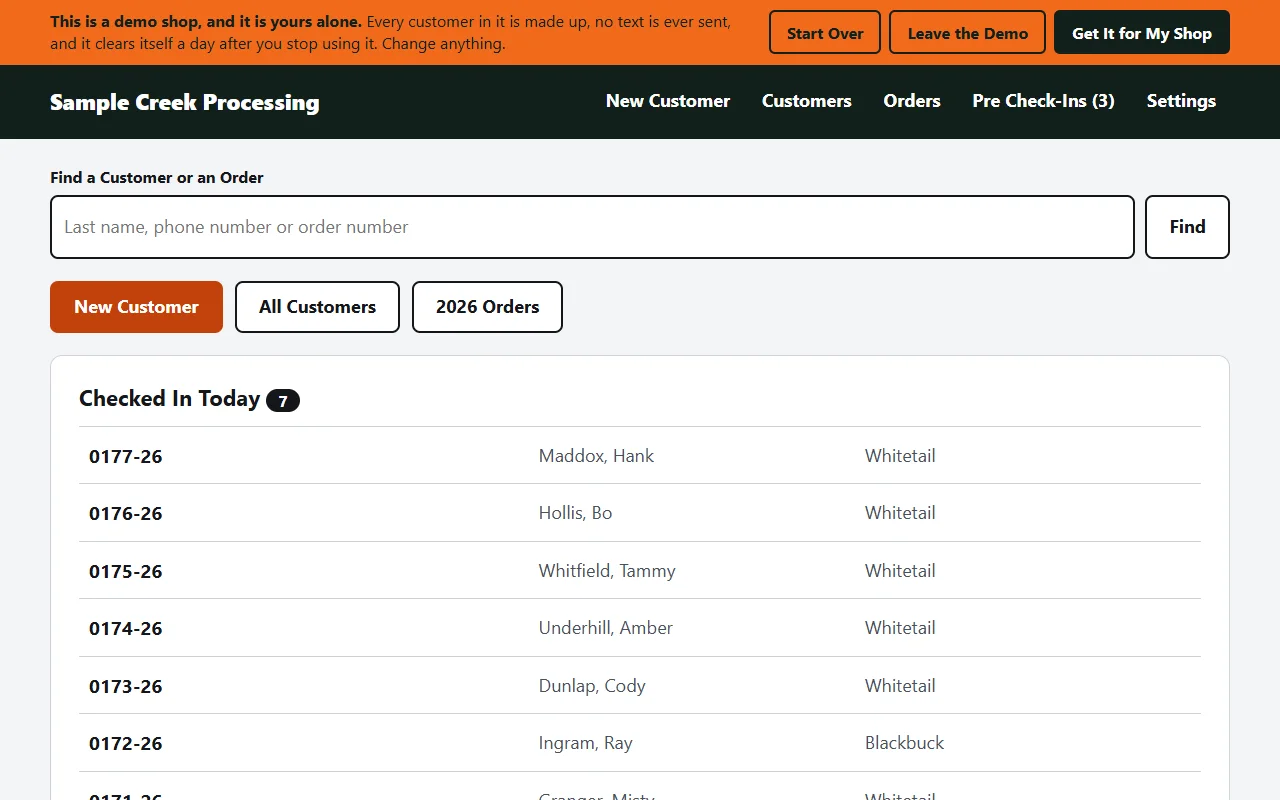
The first screen is a Find box. Type a last name, a phone number, an order number or a pre check-in code and you are there. Under it: everything checked in today.

  • A returning customer keeps every order from every season behind their name
  • New customers are two names and a phone number; a ranch or business needs only one name
  • Pre check-ins waiting are counted in the menu
The Home screen of the demo shop: the Find box, and the orders checked in today.

The Order

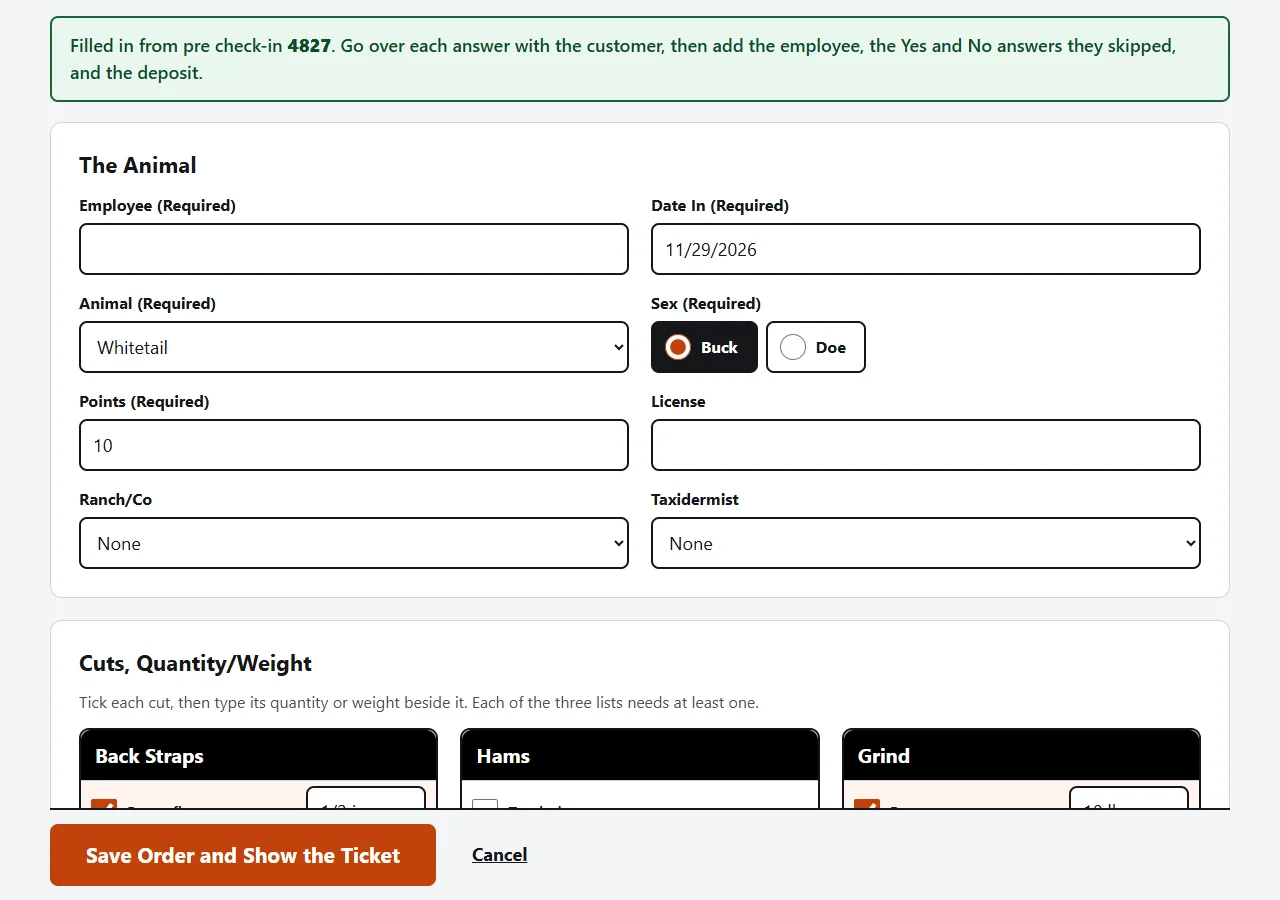
Animal, then three lists of cuts side by side. Tick a cut and the cursor jumps to its quantity box. Questions that only apply sometimes, like points on a buck, only show when they apply.

  • Each list needs at least one cut, so nothing is left to guess on the floor
  • Yes or No for cape, gut, whole head, mount, hide, shipping
  • Balance works itself out from the total and the deposit as you type
The order form: the animal, and three lists of cuts with quantity boxes.

The Ticket

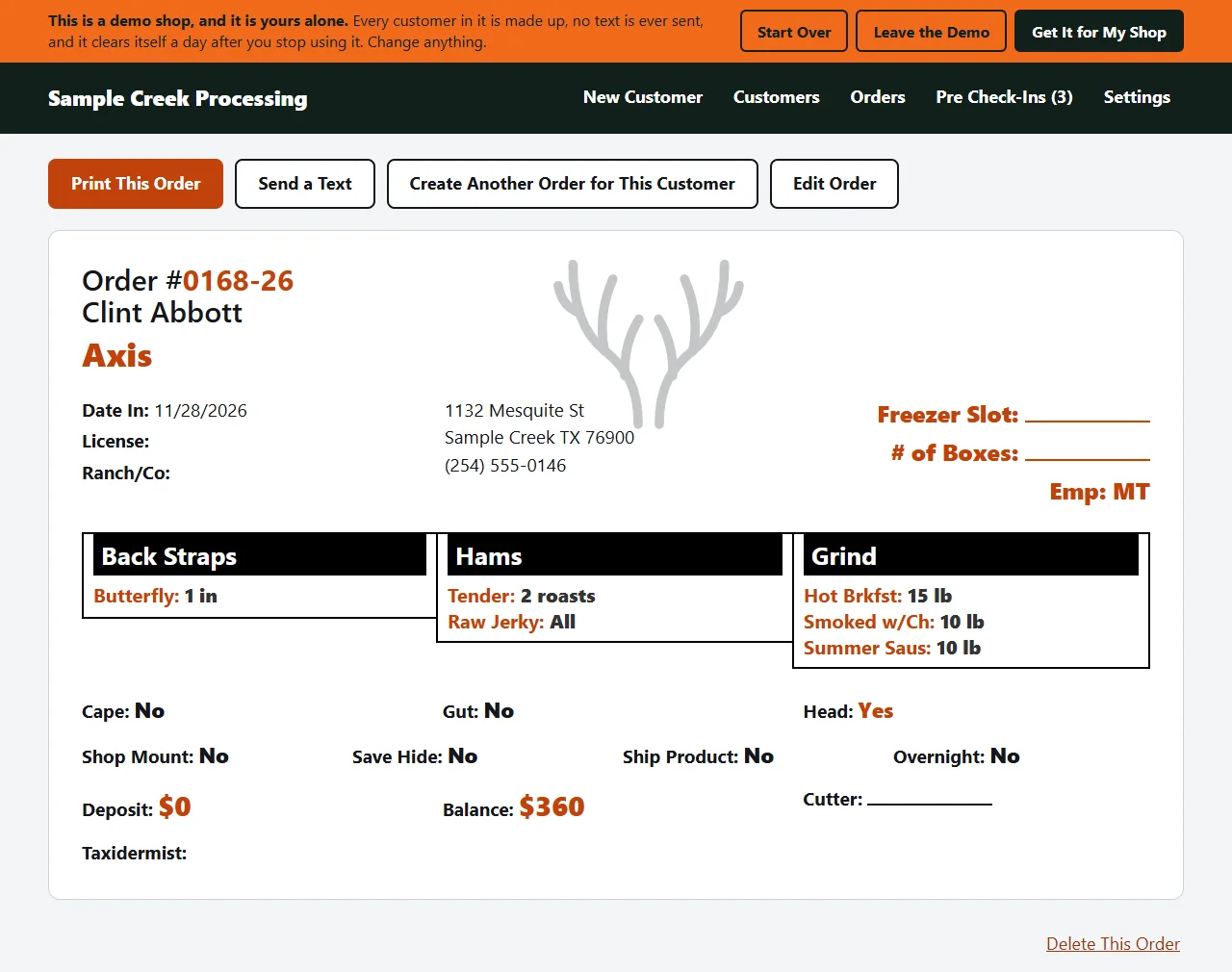
Saving the order opens its ticket, ready to print. Order number and animal in big type, cuts in three columns under your own short names, and blanks for what gets written by hand.

  • Laid out in inches, so it prints the same from any printer
  • Upright or sideways on a letter sheet: your choice under Settings
  • Edit the order and the ticket keeps its number
A printed-style cut ticket: order number, customer, animal, and three columns of cuts.

The Text

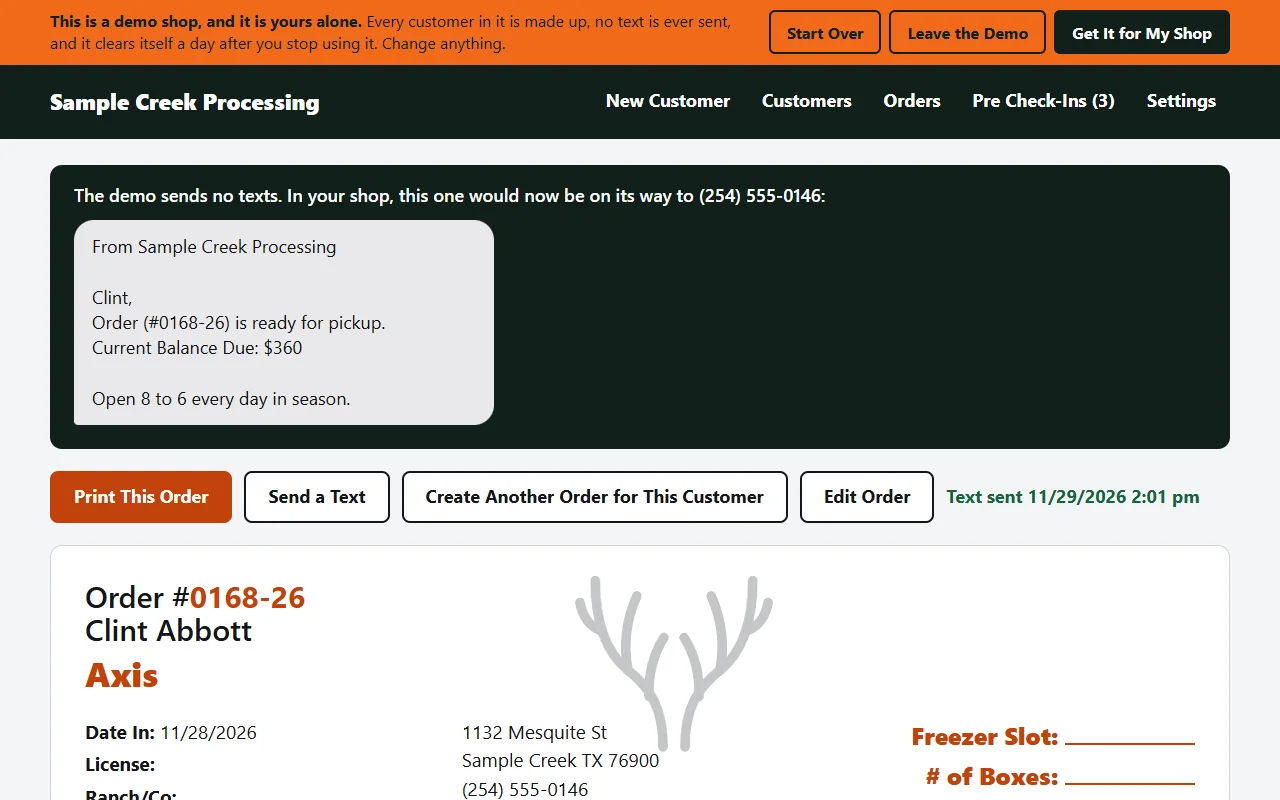
When the order is boxed, open the ticket and press Send a Text. The wording is yours, with the hunter's first name, the order number and the balance due dropped in.

  • The ticket shows when the text was sent
  • Texts come from your shop's own number, through a texting service (Twilio) in your name
  • In the demo no text is sent: the screen shows what would have gone out
The demo showing the text a customer would receive when their order is ready.

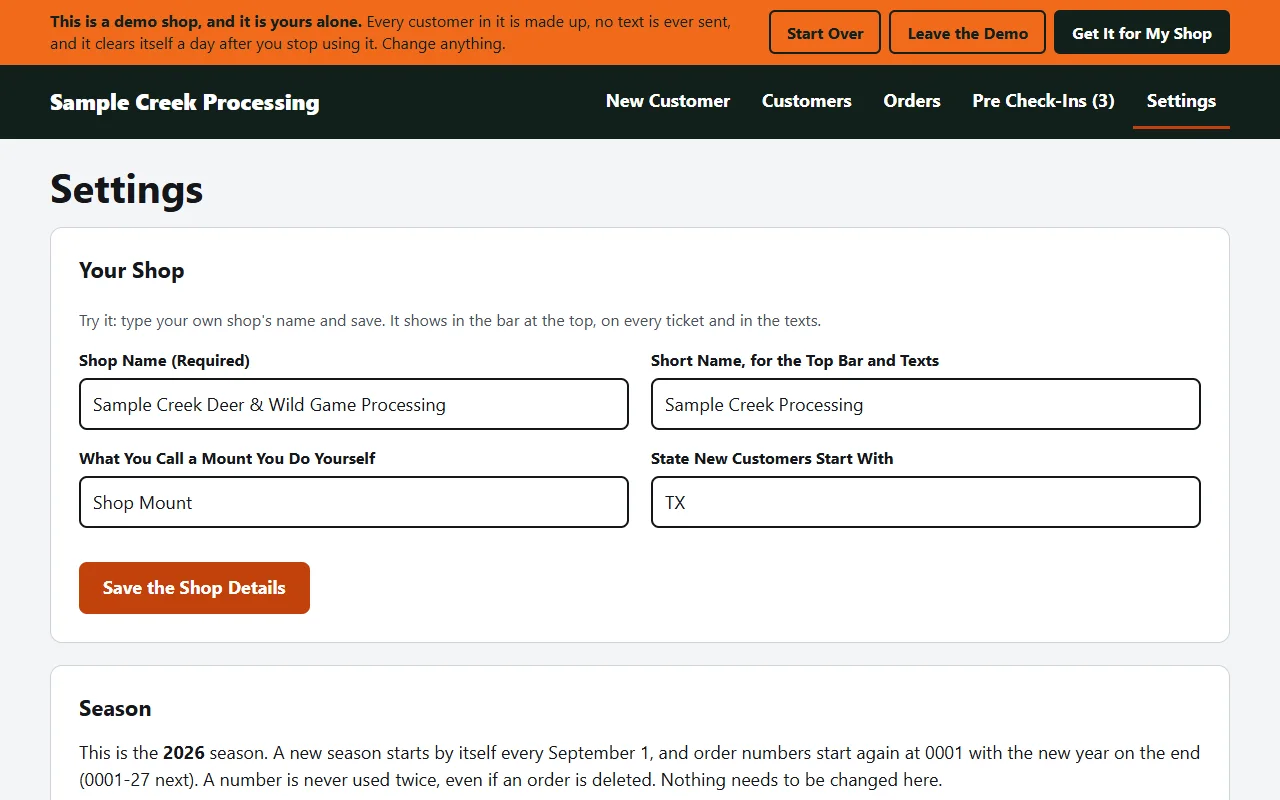
Settings: It Is Your Shop

Type a list one line at a time and save. Take a line out and it stops being offered, while old orders keep it. Add a sign-in for each person: staff take orders, admins also change settings.

  • Cuts, animals, ranches and taxidermists
  • The wording of both texts
  • Who can sign in, and what they can do
  • A copy of everything every night, 30 nights kept
The Settings screen: the shop name and the lists of cuts, one per line.

What You Need

Something With a Web Browser

A computer, tablet or phone and an internet connection. There is nothing to install and nothing to update.

Any Letter Printer

The ticket is one letter sheet. If your printer prints a web page, it prints a ticket.

A Number to Text From

Texts go out through Twilio, a texting service, from a number that belongs to your shop. Without it, everything else still works.

Want It Running Before Your Next Opener?

Tell us about your shop. We set it up with your cuts, your ticket and your wording.

Get StartedTry the Demo First